

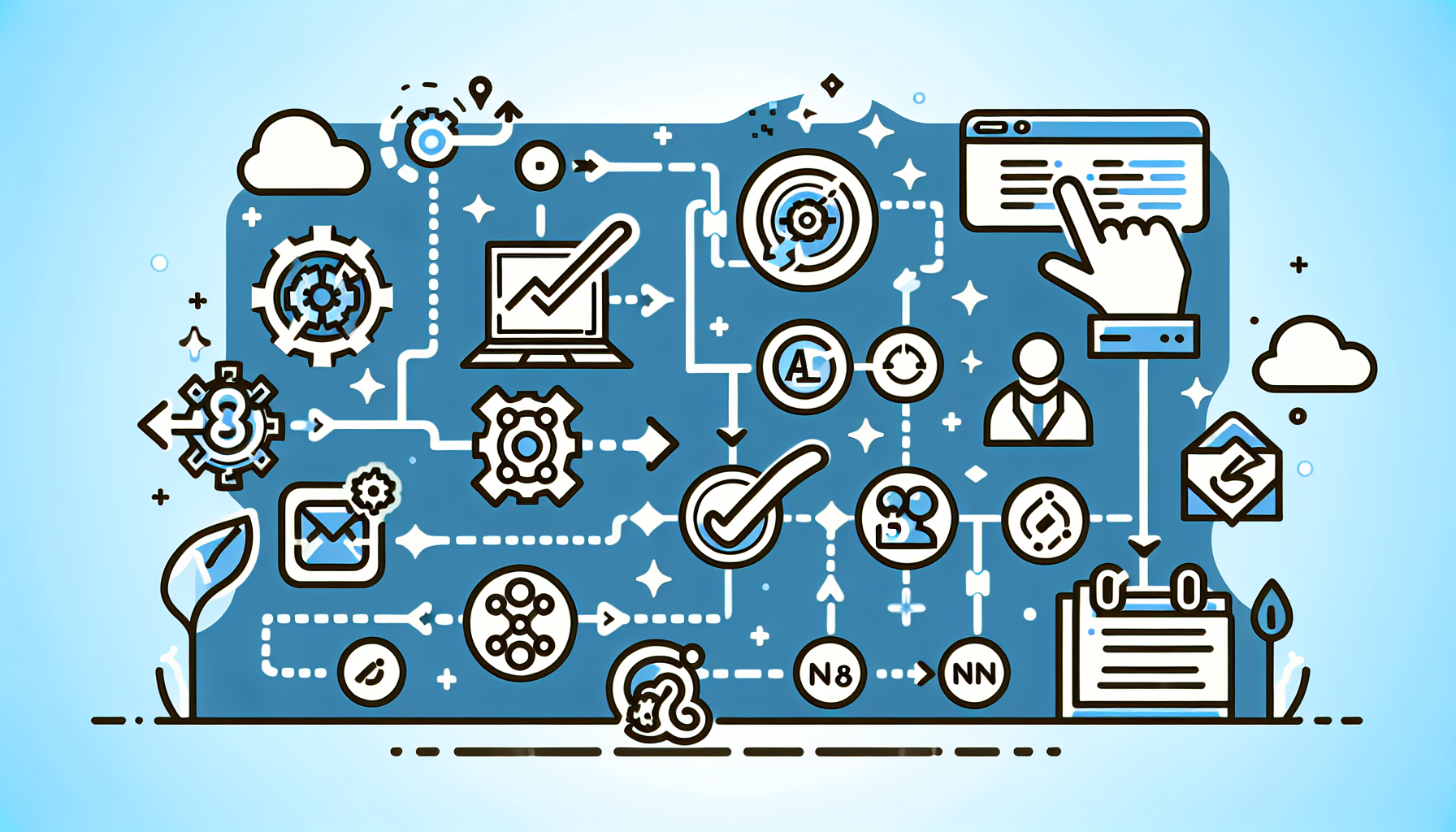

Understanding CRM Automation
CRM (Customer Relationship Management) automation allows businesses to streamline their processes, improve customer interactions, and enhance data management. Effective CRM automation reduces manual tasks, enabling teams to focus on high-impact activities.
Why Use Zapier and N8N for CRM Automation?
Both Zapier and N8N are powerful tools that enable the automation of workflows, but their approaches and functionalities differ.
-
Zapier: Predominantly known for its user-friendly interface, it caters to users who seek quick automation without needing extensive programming knowledge. It connects thousands of apps, making it optimal for straightforward tasks.
-
N8N: This open-source tool offers more customization and flexibility, allowing developers to create complex workflows that can interact with APIs directly. It’s particularly useful for businesses with more specific automation needs.
Setting Up CRM Automation with Zapier
-
Create a Zapier Account: Visit Zapier’s website and sign up. The free tier provides enough functionality for basic automation.
-
Identify Your CRM Needs: Determine the tasks you wish to automate, such as lead management, follow-ups, or notifications.
-
Choose Your Trigger App:
- Click on “Make a Zap”.
- Select a trigger app (e.g., Google Sheets for lead capture).
- Choose a specific trigger (e.g., “New Spreadsheet Row”).
-
Connect Your CRM:
- Add the action app, selecting your CRM (like Salesforce, HubSpot, etc.).
- Authenticate your CRM account within Zapier.
-
Map the Data Fields:
- Configure the mapping of fields between your trigger app and CRM.
- Ensure that required fields (like contact names, emails) are filled.
-
Set Up Conditional Logic (Optional):
- Use Zapier’s paths feature for conditional workflows (e.g., if a lead score is above a certain number, add to a different list).
-
Test Your Zap: Run a few test scenarios to confirm the flow and correctness of data.
-
Activate Your Zap: Once everything works as intended, turn on the Zap and monitor its performance.
Exploring Automation Use Cases
- Lead Capturing: Automate lead data transfer into your CRM as leads fill out forms on your website.
- Follow-Up Emails: Set up automated follow-up emails when a new contact is added.
- Notifications: Get instant alerts when a new lead enters the CRM.
Setting Up CRM Automation with N8N
-
Install N8N: Follow the installation guide on the N8N website. You can run it locally, on Docker, or through a cloud service.
-
Access the N8N editor: Upon installation, navigate to the N8N web interface.
-
Identify an Integration:
- Choose the starting node (e.g., HTTP Request for form submissions).
- Connect your desired CRM node (e.g., Google Sheets, Pipedrive).
-
Configure Trigger: Set up the node to trigger based on specified activities, such as a new form submission.
-
Add Additional Nodes:
- Utilize the drag-and-drop interface to add other nodes for actions (e.g., Slack notifications).
- Connect the nodes logically to define the workflow.
-
Set Up Field Mappings:
- In each node, configure the fields according to your CRM’s structure.
- You can use expressions for dynamic data inputs.
-
Test Your Workflow:
- Use the ‘Execute Workflow’ function to run tests.
- Check data flow and ensure that all nodes operate as intended.
-
Schedule or Trigger Your Workflow:
- Set up triggers based on time (cron jobs) or events.
Managing Data for Optimal CRM Functionality
- Clean Data: Regularly audit the data flowing into your CRM to maintain accuracy.
- Segmentation: Utilize data fields to segment your contacts effectively.
- Analytics Integration: Use tools like Google Analytics to track the performance of your automations.
Advanced Tips for Automation Success
Utilize Webhooks: Both platforms support webhooks, allowing real-time data transmission and more responsive integration with your CRM.
Custom API Integrations: With N8N, leverage your API knowledge to create tailored integrations that align precisely with your business needs.
Error Handling and Notifications: Implement error handling processes. Both platforms allow setting up branches for failed workflows, ensuring that you can address issues quickly.
Iterate and Optimize: Regularly review and refine your workflows to ensure they meet evolving business needs. Utilize analytics provided by Zapier and N8N for insights.
Communication between Tools
Understanding how to effectively communicate between Zapier and N8N can enhance your automation:
- Integration Testing: Regularly test the integrations to ensure seamless data transfer between different platforms.
- Maintain Documentation: Keep notes on what each workflow does, how data is mapped, and any potential pitfalls.
Keeping Up with Trends
Automation technology evolves rapidly, and staying informed can help maximize your CRM efficiency. Follow industry trends, subscribe to relevant blogs, and network with professionals in automation and CRM fields.
Conclusion
By leveraging Zapier and N8N for CRM automation, businesses can enhance productivity, improve client engagement, and drive sales growth. Embrace the evolving nature of automation to optimize your CRM processes continually.
 English